
Pan
The Pan option allows you to expand the canvas of an image in a chosen direction without changing the content of the original image. The newly expanded canvas will be filled in using guidance from the prompt and the original image.
Pan allows you to increase the image resolution beyond the maximum 1024px x 1024px dimensions in one direction. Pan is compatible with Midjourney Model Version 5, 5.1, 5.2, and niji 5
The Pan buttons ⬅️ ➡️ ⬆️ ⬇️ will appear after upscaling an image. When panning, only the closest 512 pixels to the side of the image, along with the prompt, are used to determine the new section.
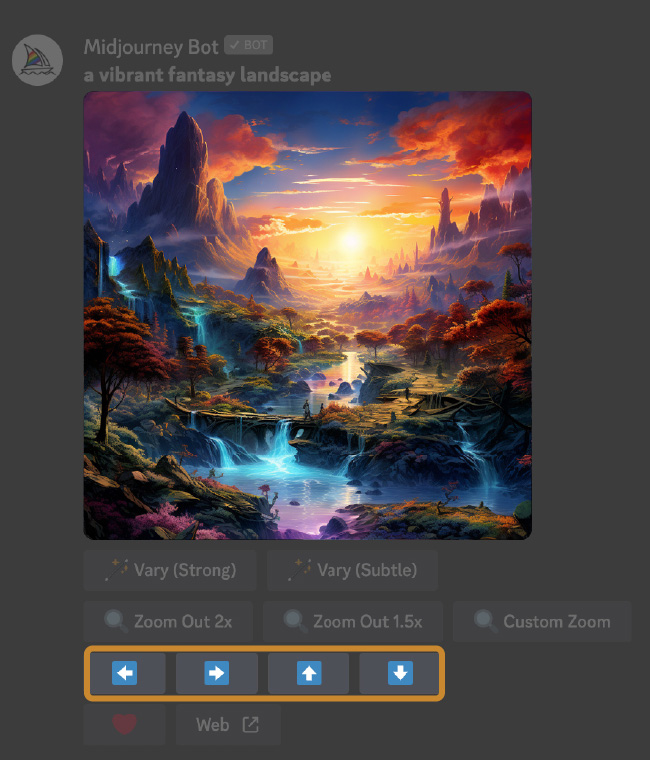
Prompt: A vibrant fantasy landscape
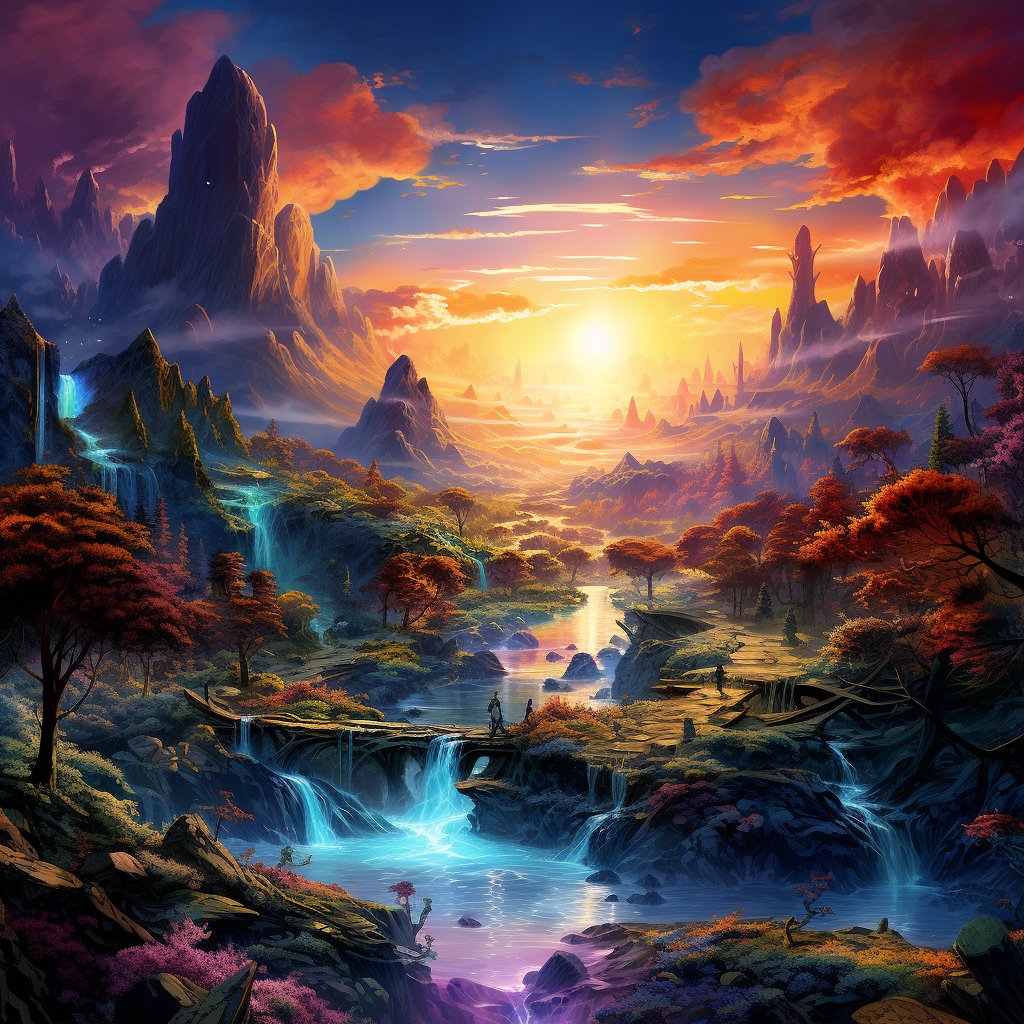
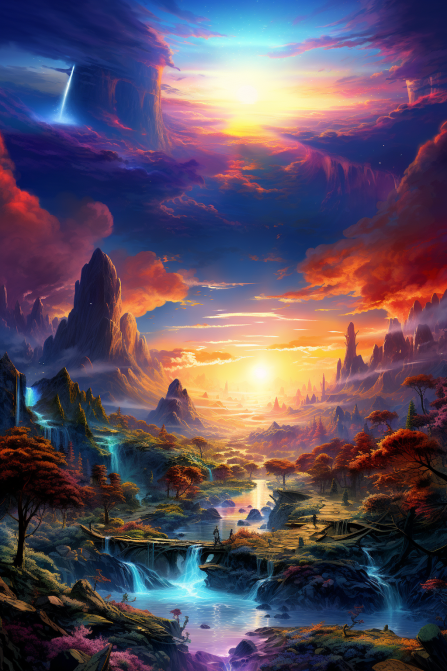
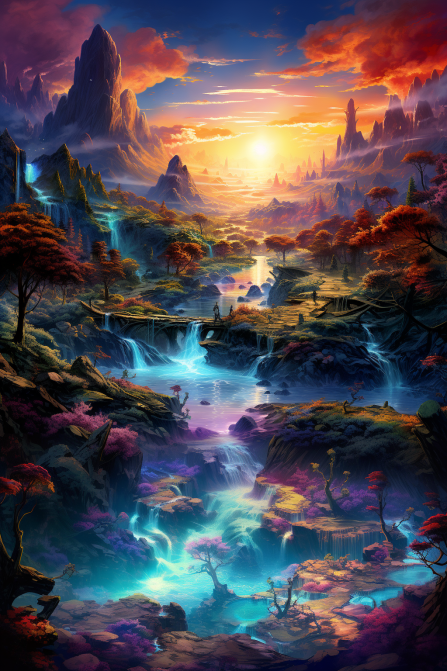
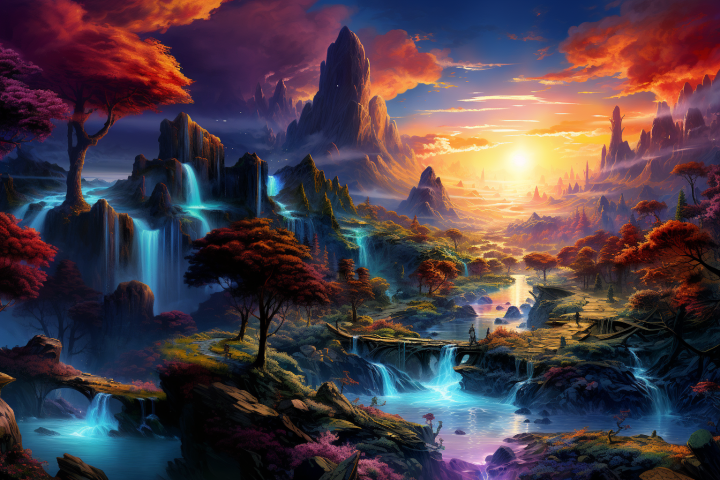
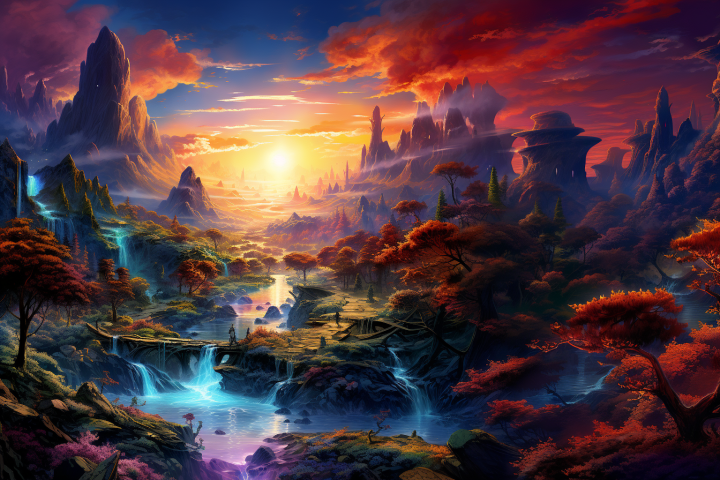
After panning an image once, you can only pan that image again in the same direction (horizontal/vertical). You may continue to pan in that direction as often as you like. After panning several times, the image may become too large to send on Discord. When this happens, you will be sent a link to the image instead.
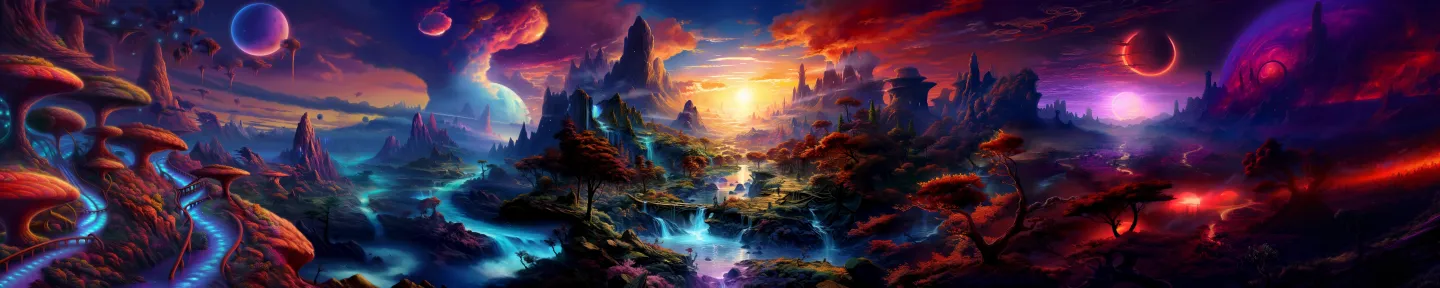
Pan ⬅️ and ➡️ several times
Panning supports Remix Mode. This allows you to change your prompt when panning.
Starting prompt: A vibrant fantasy landscape
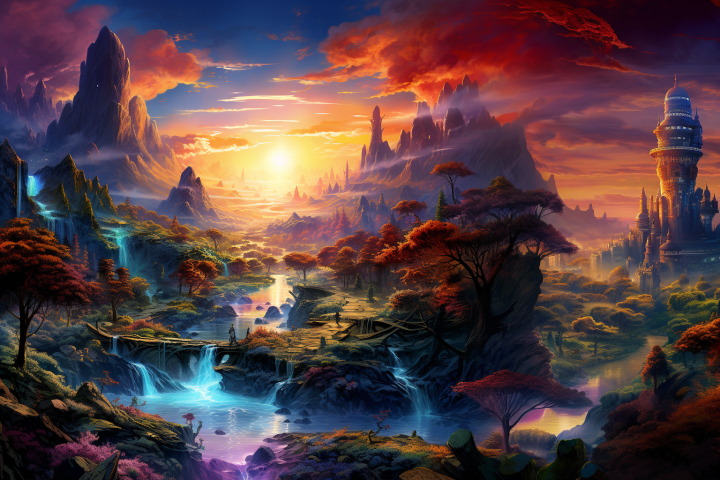
Pan ➡️ + Remix prompt: A vibrant fantasy city