
Stylize
The Midjourney Bot has been trained to produce images that favor artistic color, composition, and forms.
The
--stylize
or
--s
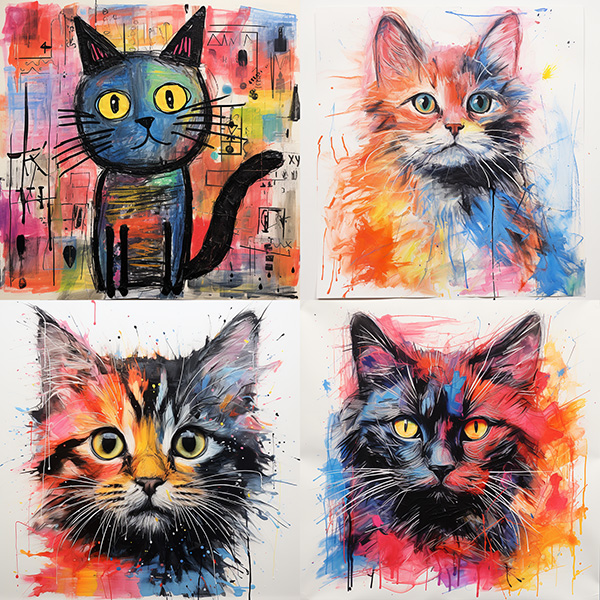
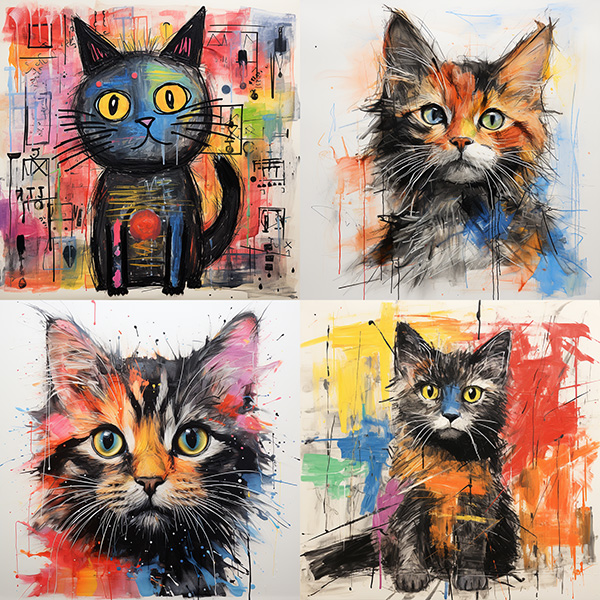
parameter influences how strongly this training is applied. Low stylization values produce images that closely match the prompt but are less artistic. High stylization values create images that are very artistic but less connected to the prompt.
--stylize’s default value is 100 and accepts integer values 0–1000 when using the current model
Different Midjourney Version Models have different stylize ranges.
| Version 5, 5.1, 5.2 | Version 4 | niji 5 | |
|---|---|---|---|
| Stylize default | 100 | 100 | 100 |
| Stylize Range | 0–1000 | 0–1000 | 0–1000 |
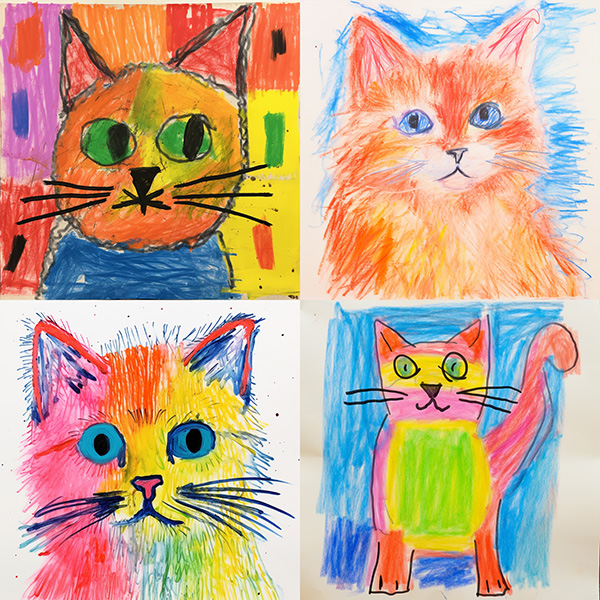
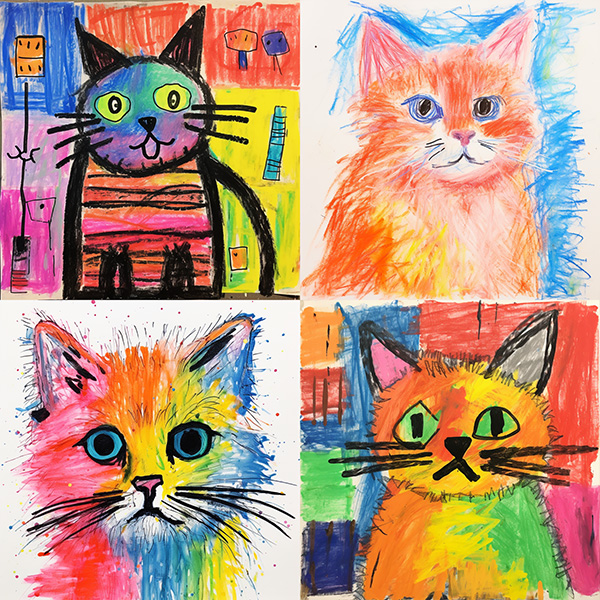
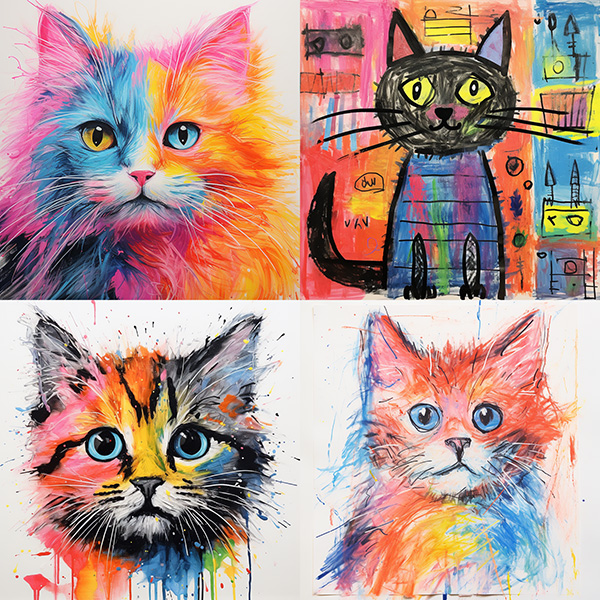
prompt example: /imagine prompt child's drawing of a cat --s 100
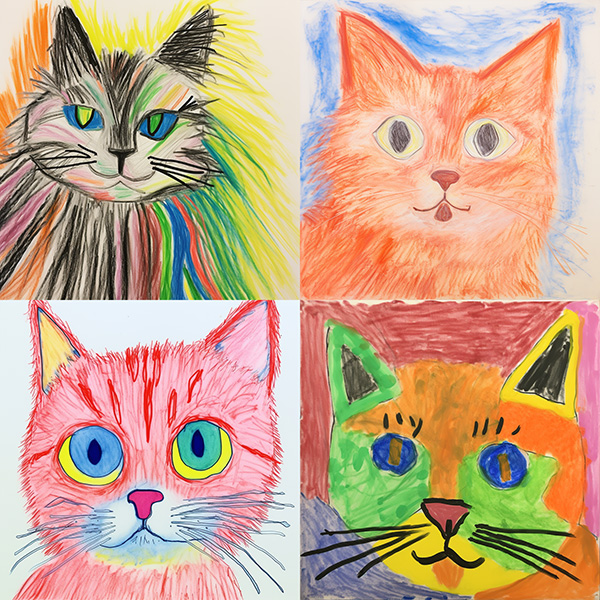
 Equal to
 🖌️ Style Low
 Equal to
 🖌️ Style Med
 Equal to
 🖌️ Style High
 Equal to
 🖌️ Style Very High
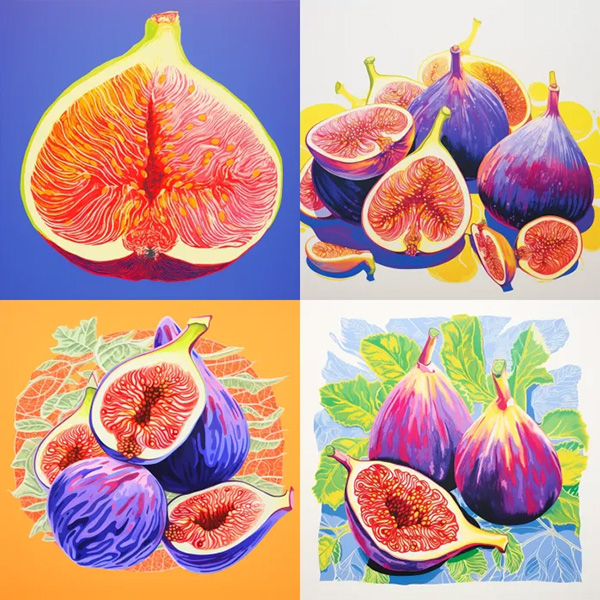
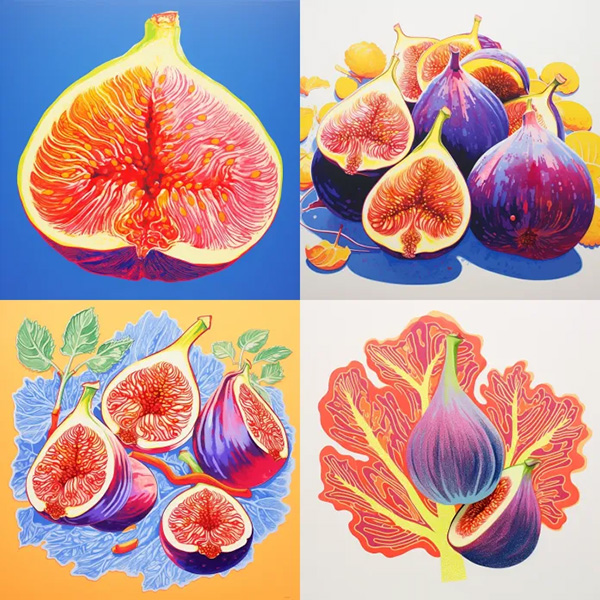
prompt example: /imagine prompt colorful risograph of a fig --s 100
--stylize 50
 Equal to
 🖌️ Style Low
--stylize 100 (default)
 Equal to
 🖌️ Style Med
--stylize 250
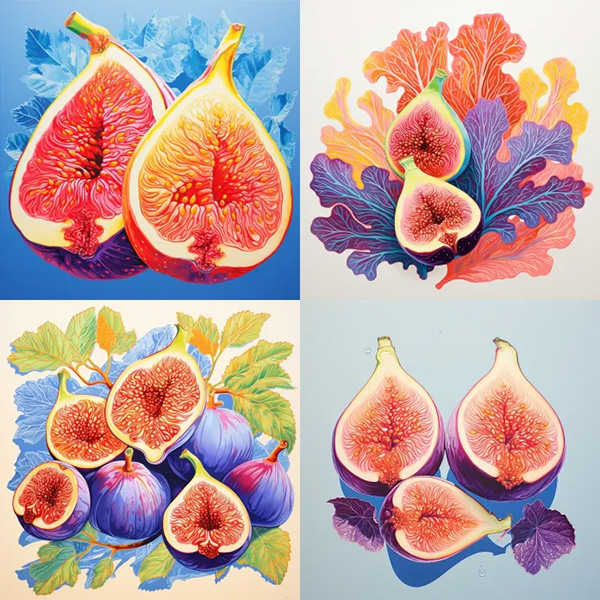 Equal to
 🖌️ Style High
--stylize 750
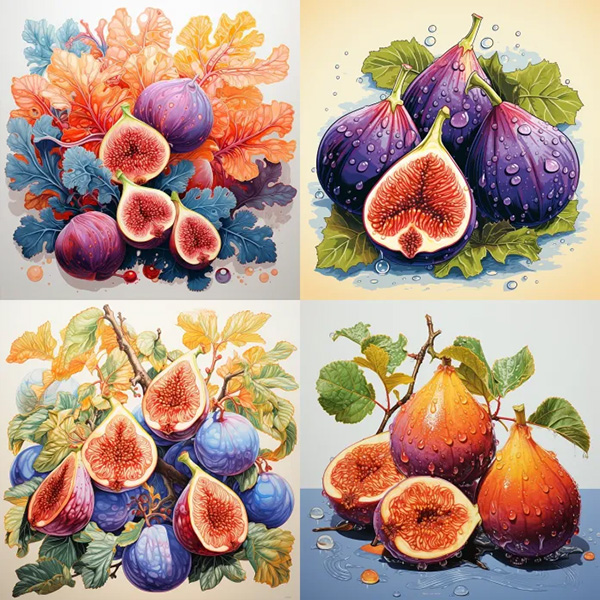 Equal to
 🖌️ Style Very High
Midjourney Model Version 5.2 is more sensitive to different stylize values. If you previously used very high stylize values, they may require adjustment for this model version. We recommend reducing your stylize value to 20% of your previous value. For example, if you were using --stylize 1000 --V 5.1, try using --stylize 200 instead.
prompt example: /imagine prompt colorful risograph of a fig --v 5.1 --s 100
--stylize 50
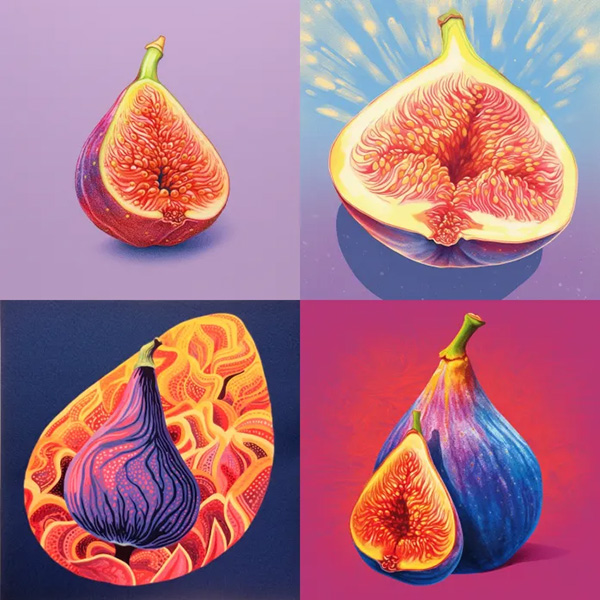
🖌️ Style Low
--stylize 100 (default)
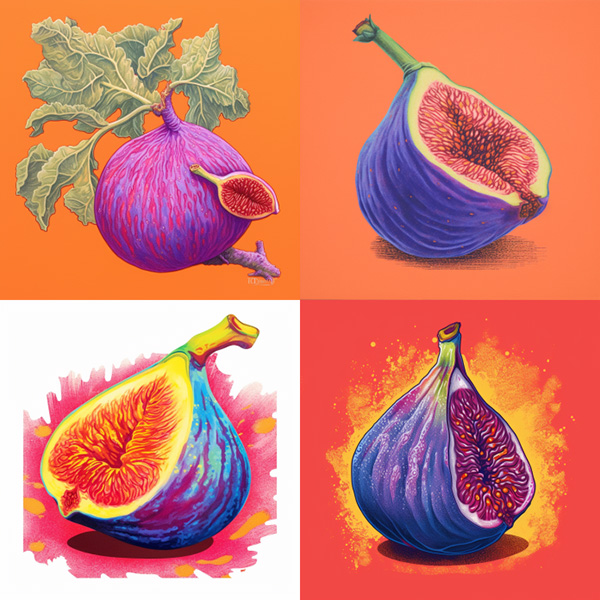
🖌️ Style Med
--stylize 250
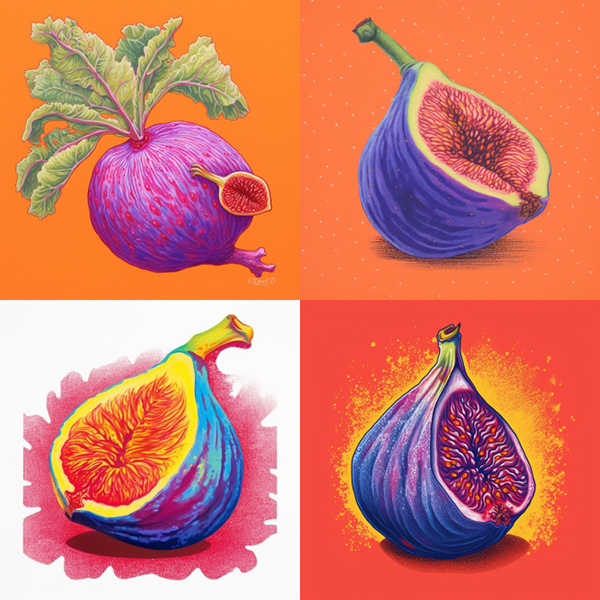
🖌️ Style High
--stylize 750
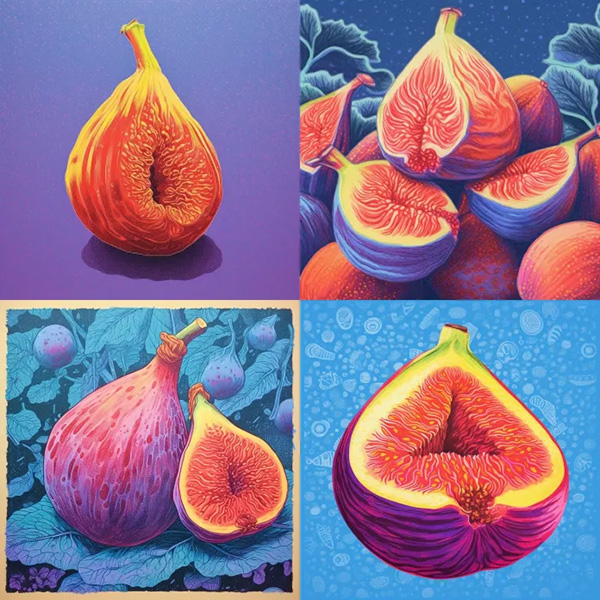
🖌️ Style Very High
prompt example: /imagine prompt colorful risograph of a fig --niji 5 --s 100
--stylize 50

🖌️ Style Low
--stylize 100 (default)
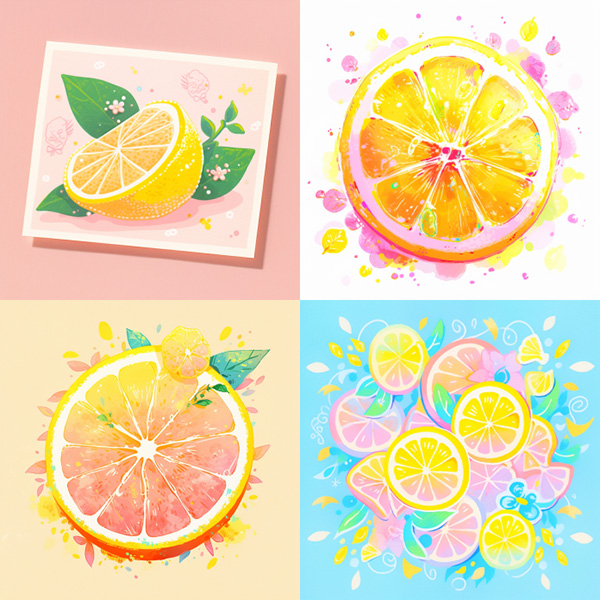
🖌️ Style Med
--stylize 250
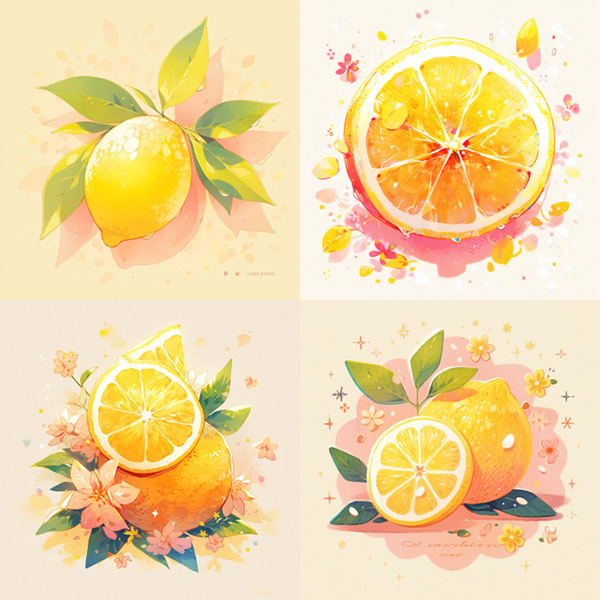
🖌️ Style High
--stylize 750
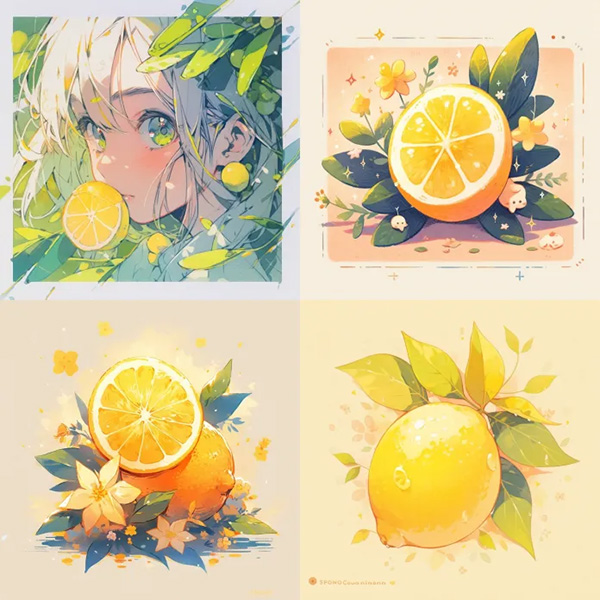
🖌️ Style Very High
prompt example: /imagine prompt illustrated figs --v 4 --s 100
--stylize 50
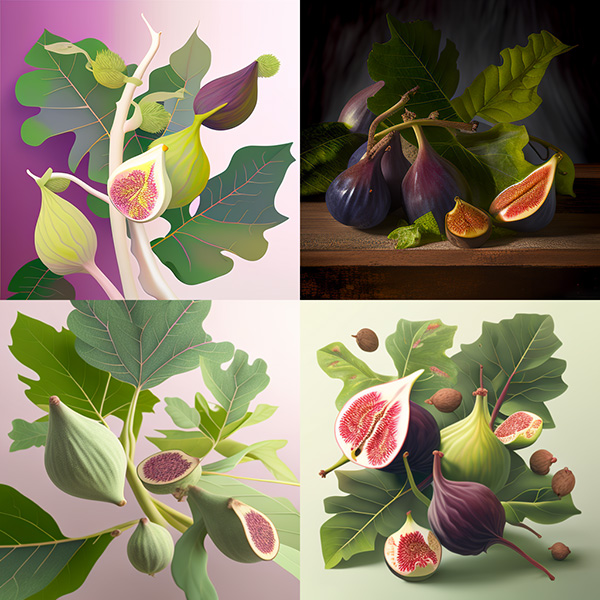
🖌️ Style Low
--stylize 100 (default)
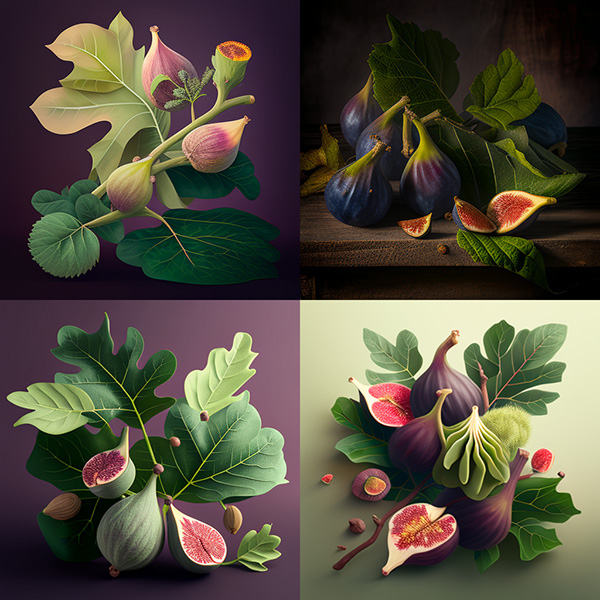
🖌️ Style Med
--stylize 250
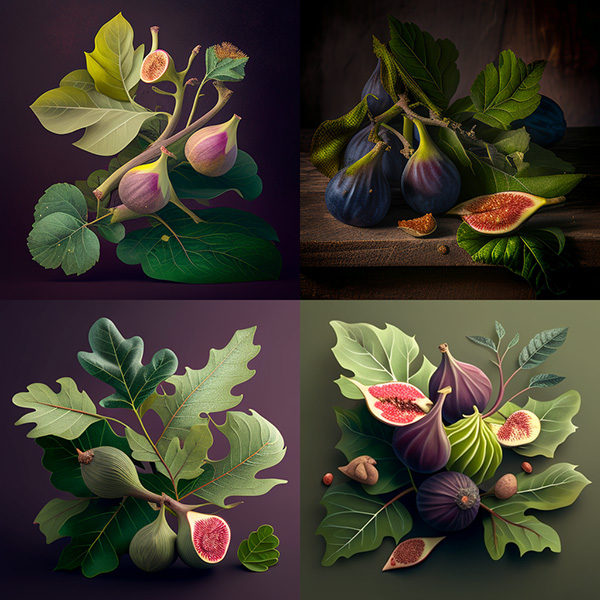
🖌️ Style High
--stylize 750
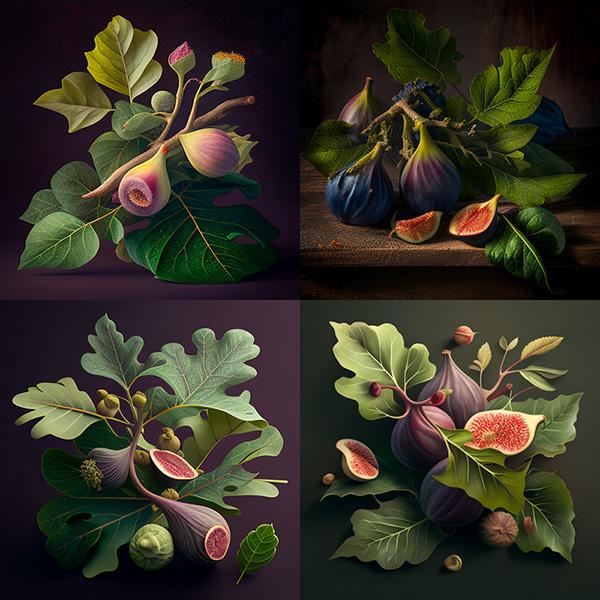
🖌️ Style Very High
Add --stylize <value> or --s <value> to the end of your prompt.
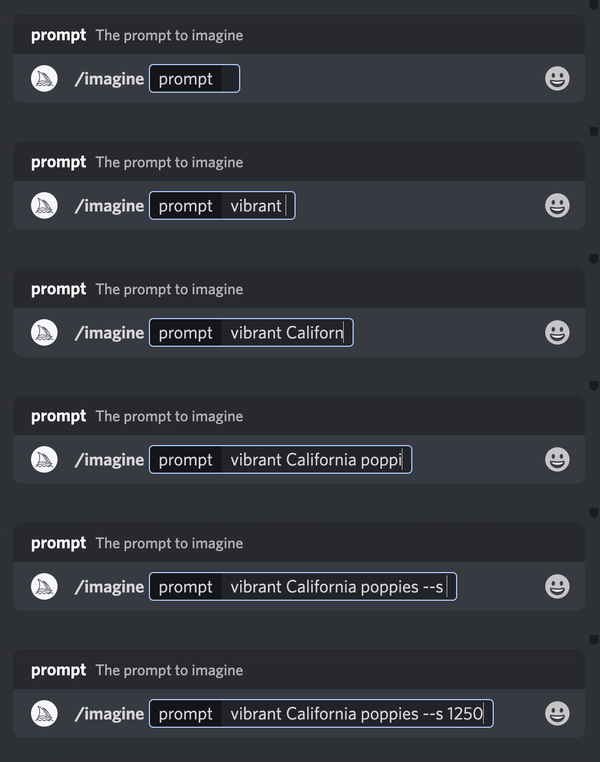
Type /settings and select your preferred stylize value from the menu.
🖌️ Style Low` `🖌️ Style Med` `🖌️ Style High` `🖌️ Style Very High