
Style
The --style parameter replaces the default aesthetic of some Midjourney Model Versions. Adding a style parameter can help you create more photo-realistic images, cinematic scenes, or cuter characters.
Default Model Version 5.2 and the previous version 5.1 accept --style raw.
Model Version Niji 5 accepts --style cute --style scenic --style original or --style expressive
The current default Model Version 5.2 and the previous model version 5.1 have one style parameter, --style raw. --style raw uses an alternative model that may work well for users already comfortable with prompting who want more control over their images. Images made with --style raw have less automatic beautification applied, which can result in a more accurate match when prompting for specific styles.

ice cream icon
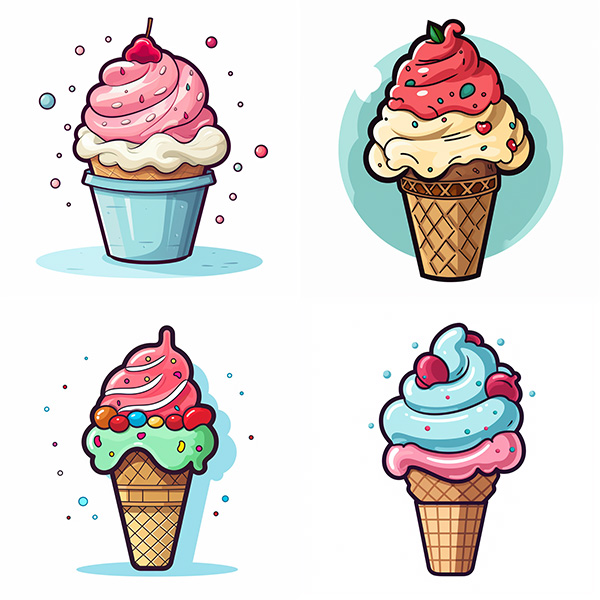
ice cream icon –style raw
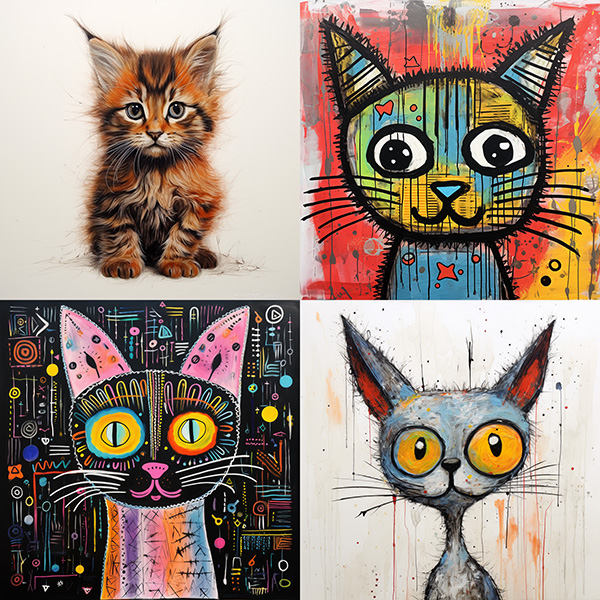
child’s drawing of a cat
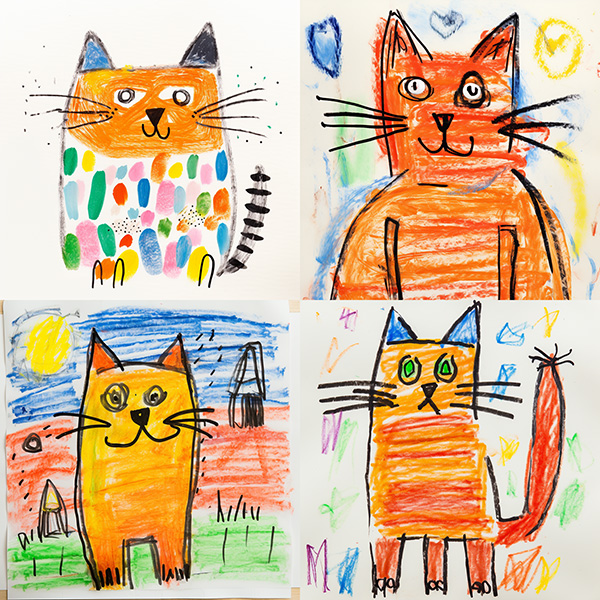
child’s drawing of a cat –style raw
Niji Model Version 5 can also use different aesthetics with --style options to achieve unique looks. Try --style cute, --style scenic, --style original , or --style expressive.
--style cute creates charming and adorable characters, props, and settings.
--style expressive has a more sophisticated illustrated feeling.
--style original uses the original Niji Model Version 5, which was the default before May 26th, 2023.
--style scenic makes beautiful backgrounds and cinematic character moments in the context of their fantastical surroundings.
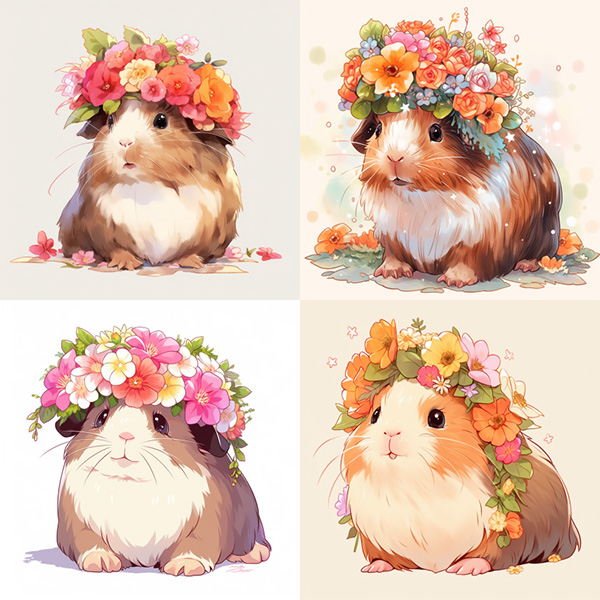
guinea pig wearing a flower crown –niji 5
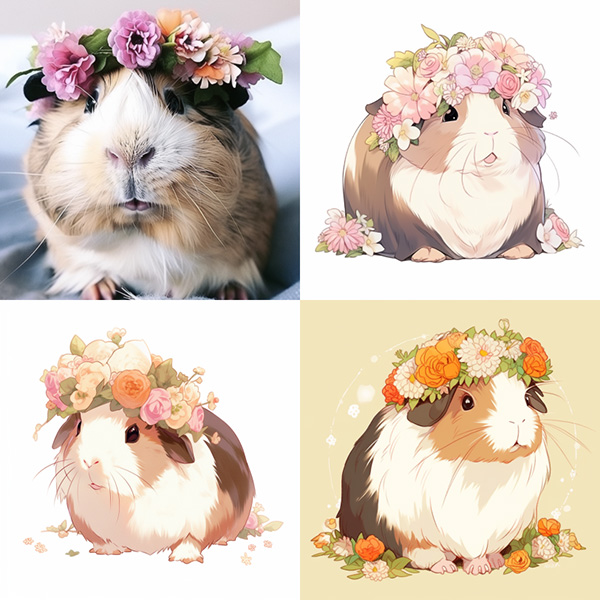
guinea pig wearing a flower crown –niji 5 –style original
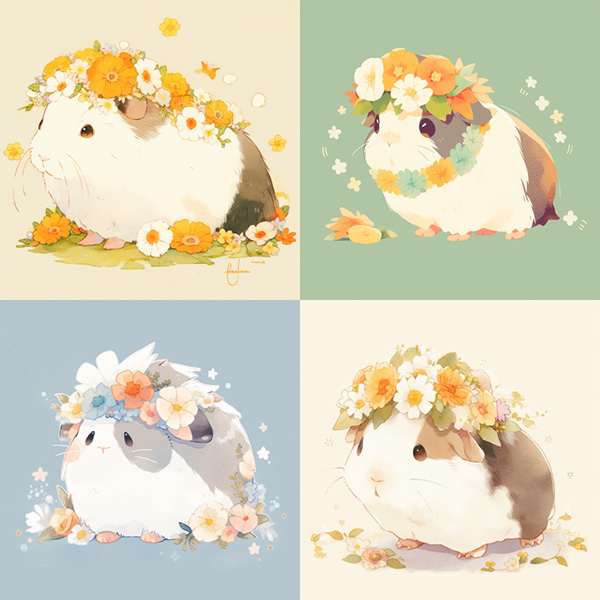
guinea pig wearing a flower crown –niji 5 –style cute

guinea pig wearing a flower crown –niji 5 –style expressive
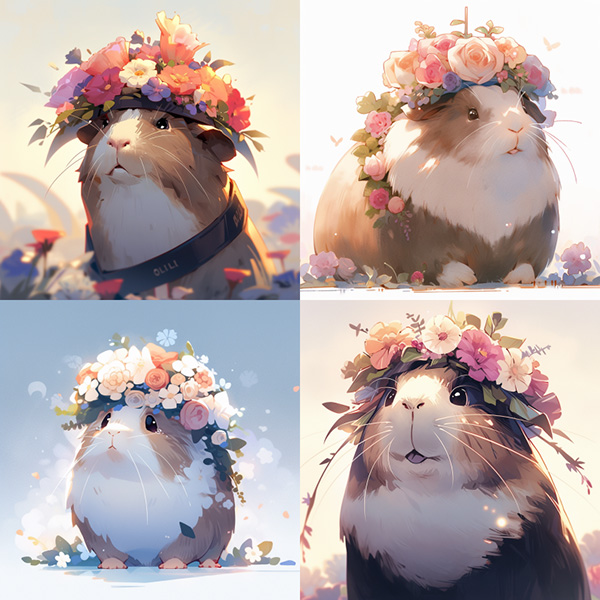
guinea pig wearing a flower crown –niji 5 –style scenic
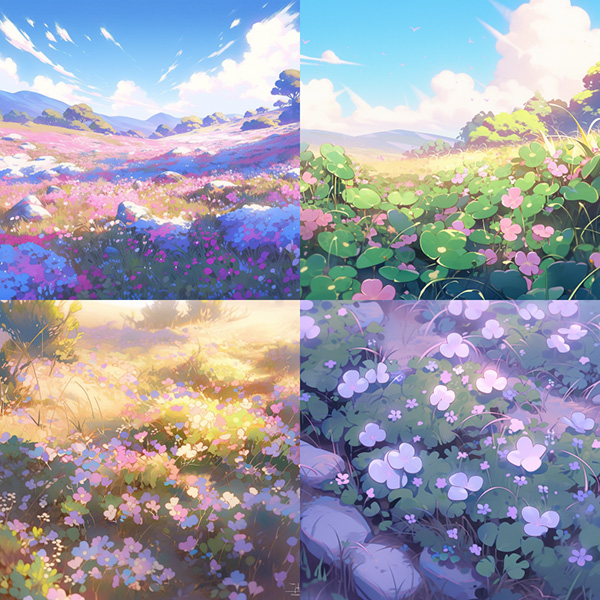
pastel fields of oxalis –niji 5
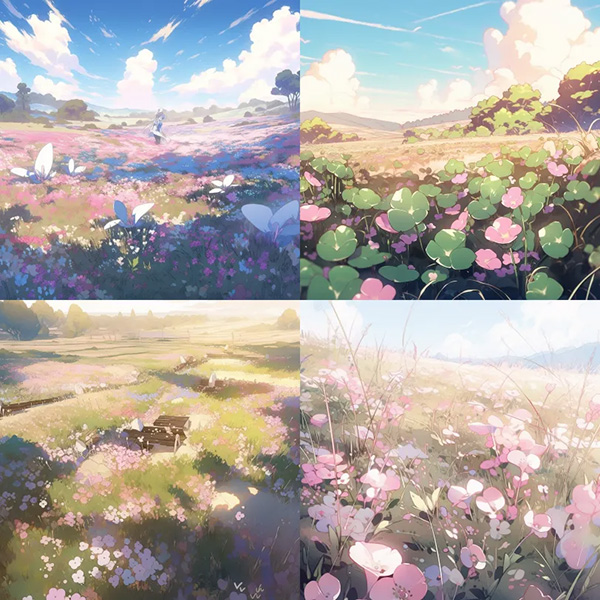
pastel fields of oxalis –niji 5 –style original
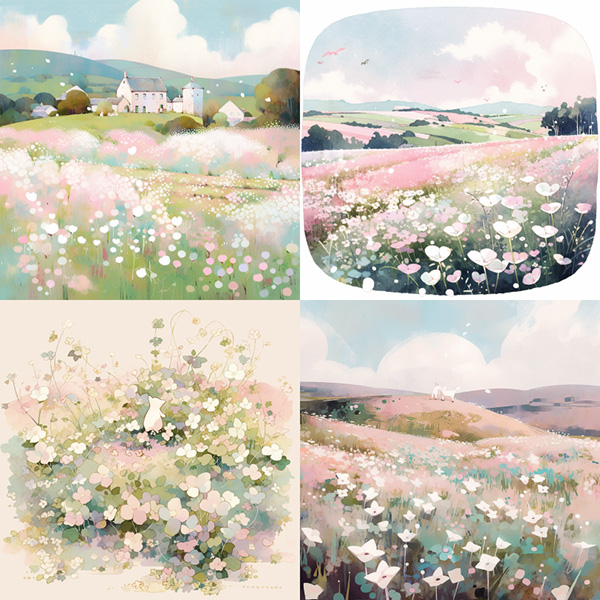
pastel fields of oxalis –niji 5 –style cute
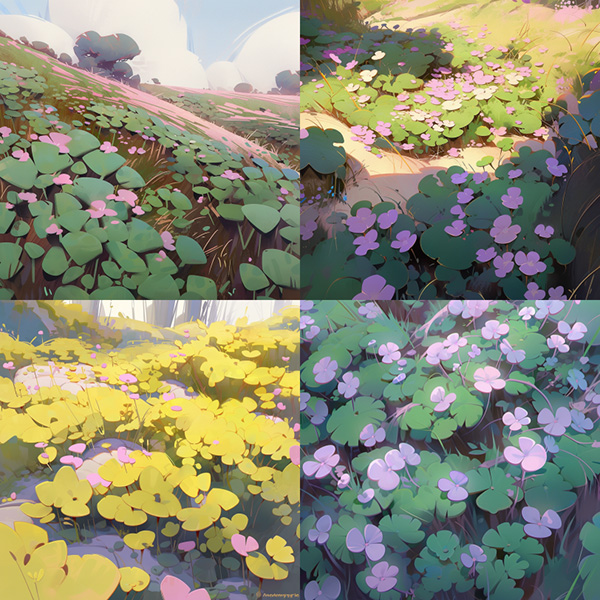
pastel fields of oxalis –niji 5 –style expressive
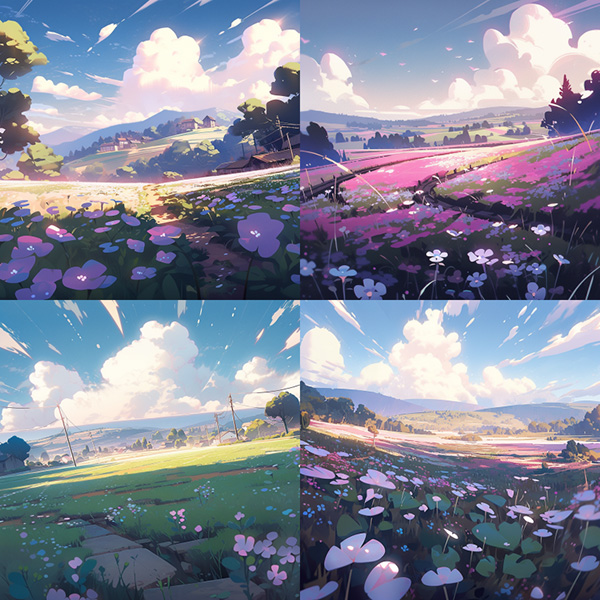
pastel fields of oxalis –niji 5 –style scenic
Add --style <style name> to the end of your prompt.

Type /settings and select 🔧 Raw from the menu to append --style raw to all prompts.