Blend
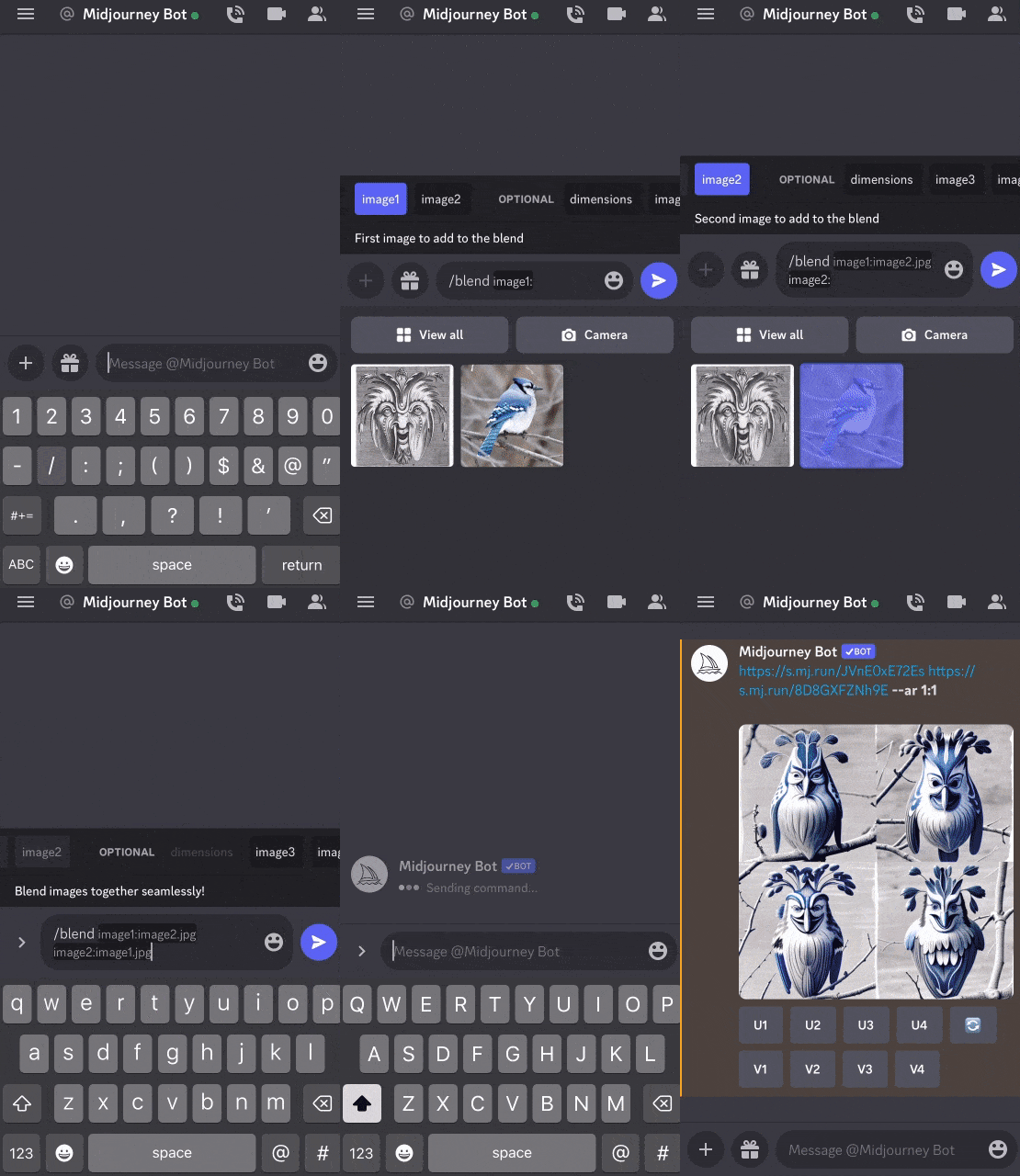
The /blend command allows you to upload 2–5 images quickly and then looks at the concepts and aesthetics of each image and merges them into a novel new image.
/blend` is the same as using multiple [image prompts](https://docs.midjourney.com/image-prompts) with `/imagine`, but the interface is optimized for easy use on mobile devices.
`/blend` works with up to 5 images. To use more than 5 images in a prompt use [image prompts](https://docs.midjourney.com/image-prompts) with `/imagine`
`/blend` does not work with text prompts. To use text and image prompts together, use [image prompts](https://docs.midjourney.com/image-prompts) and text with `/imagine
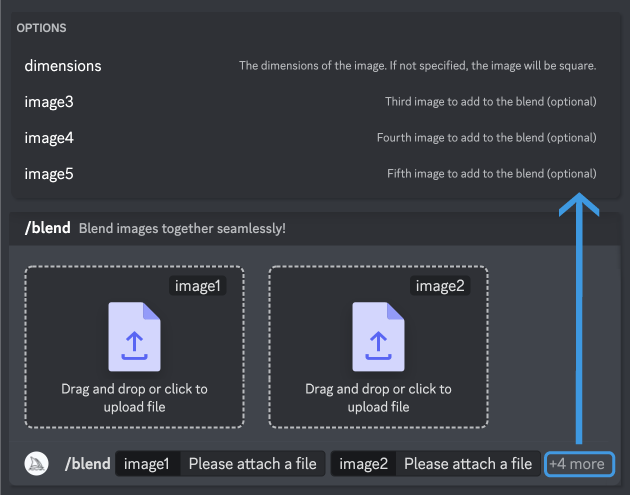
After typing the /blend command, you will be prompted to upload two photos. Drag and drop images from your hard drive or add images from your photo library when using a mobile device. To add more images, select the optional/options field and select image3, image4, or image5. The /blend command may take longer to start than other commands because your images must be uploaded before the Midjourney Bot can process your request.
Blended images have a default 1:1 aspect ratio, but you can use the optional dimensions field to select between a square aspect ratio (1:1), portrait aspect ration (2:3), or landscape aspect ratio (3:2).
Custom suffixes are added to the end of /blend prompts, like any other /imagine prompt. Aspect ratios specified as part of the /blend command override aspect ratios within a custom suffix.
Blending Tip
For the best results, upload images that are the same aspect ratio as your desired result.