Vary Region + Remix
Combine Remix Mode and the Midjourney Vary Region editor to select and regenerate specific parts of an upscaled image using a new or modified prompt.
This tool requires you to use up-to-date Discord client versions, if you do not see the Vary Region button, try updating your Discord client.
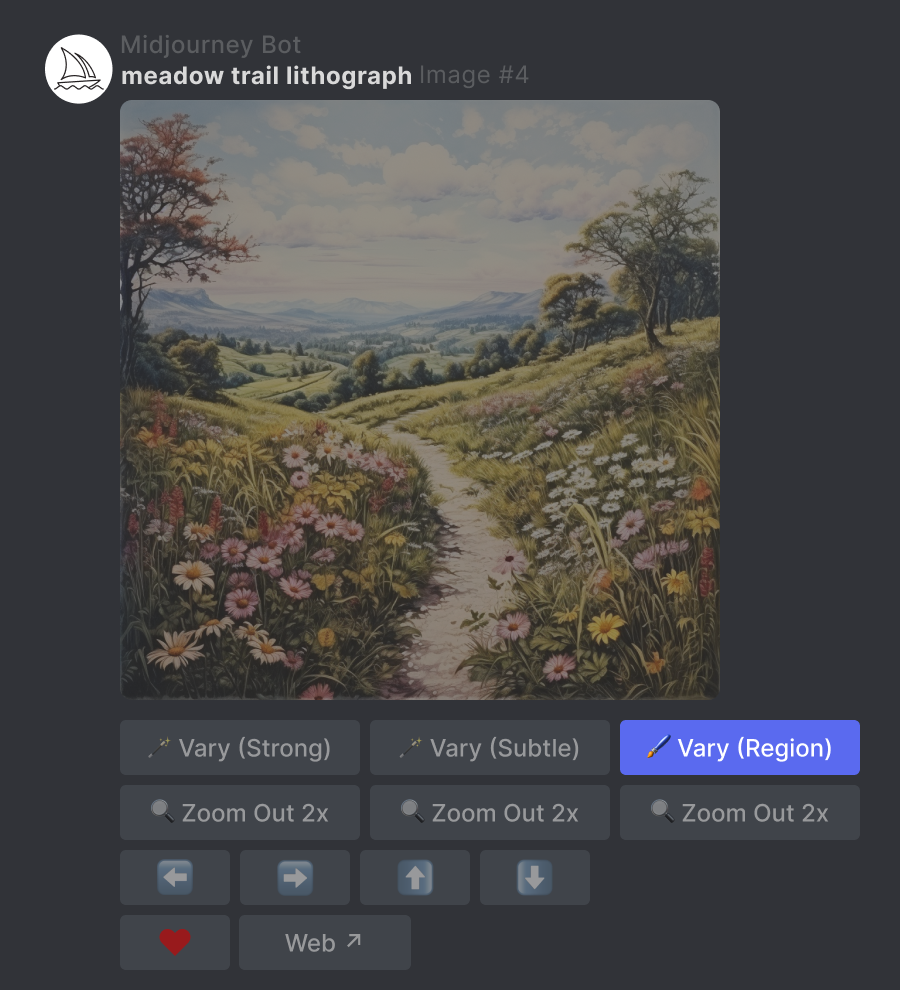
The Vary (Region) button appears after a Midjourney image has been upscaled.
Regional variations results are guided by the content in your original image, the area you select, and the modified prompt used.
Vary (Region) is compatible with Midjourney Model Versions V5.0, V5.1, V5.2, and niji 5
Use the /settings command and select 🎛️ Remix from the pop-up.
Create an image using the /imagine command.

Use the U buttons to upscale your selected image.
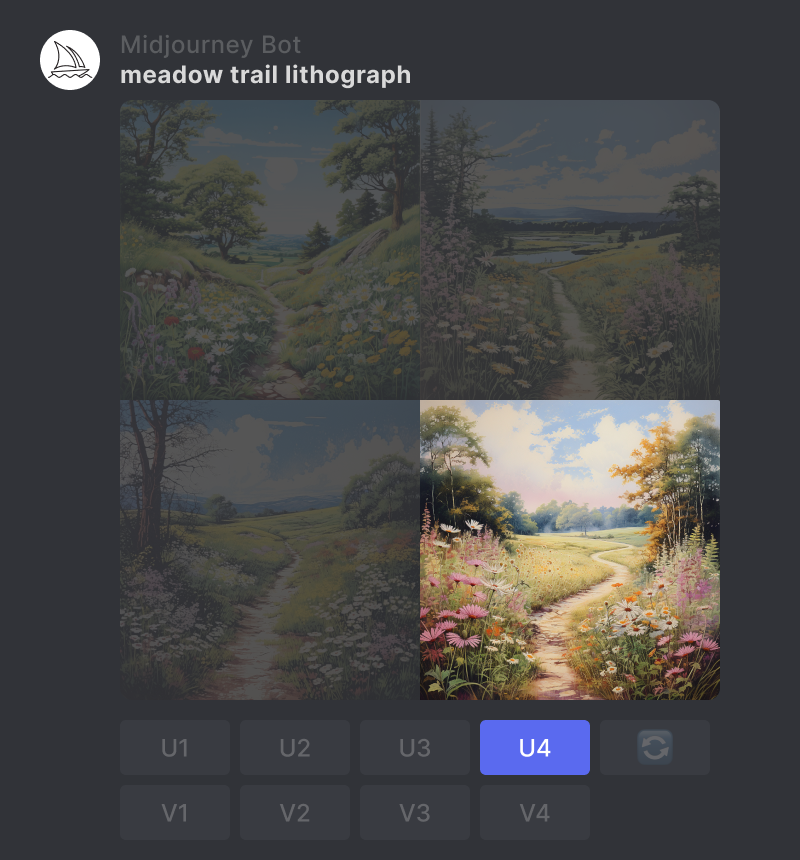
Click the 🖌️ Vary (Region) button to open the editing interface.
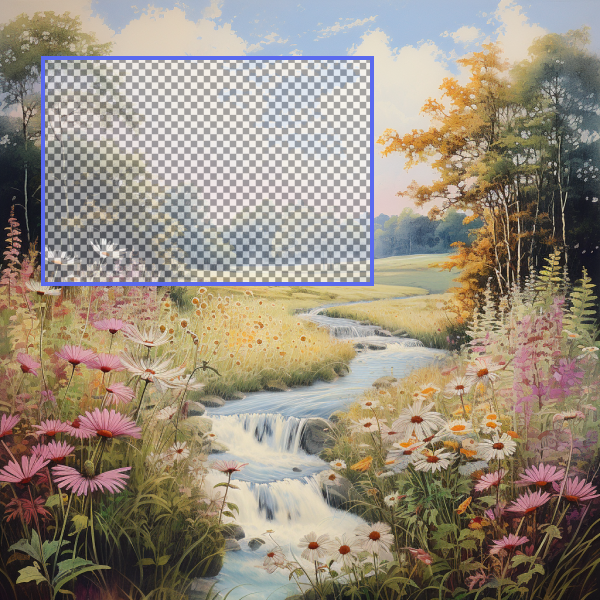
- Choose the freehand or rectangular selection tools in the lower left of the Editor.
- Select the areas of your image that you want to regenerate.
- The size of your selection will affect your results. Larger selections give the Midjourney Bot more room to generate new creative details. Smaller selections will result in smaller, more subtle changes. Note: You cannot edit an existing selection but can undo multiple steps using the undo button in the upper right corner.
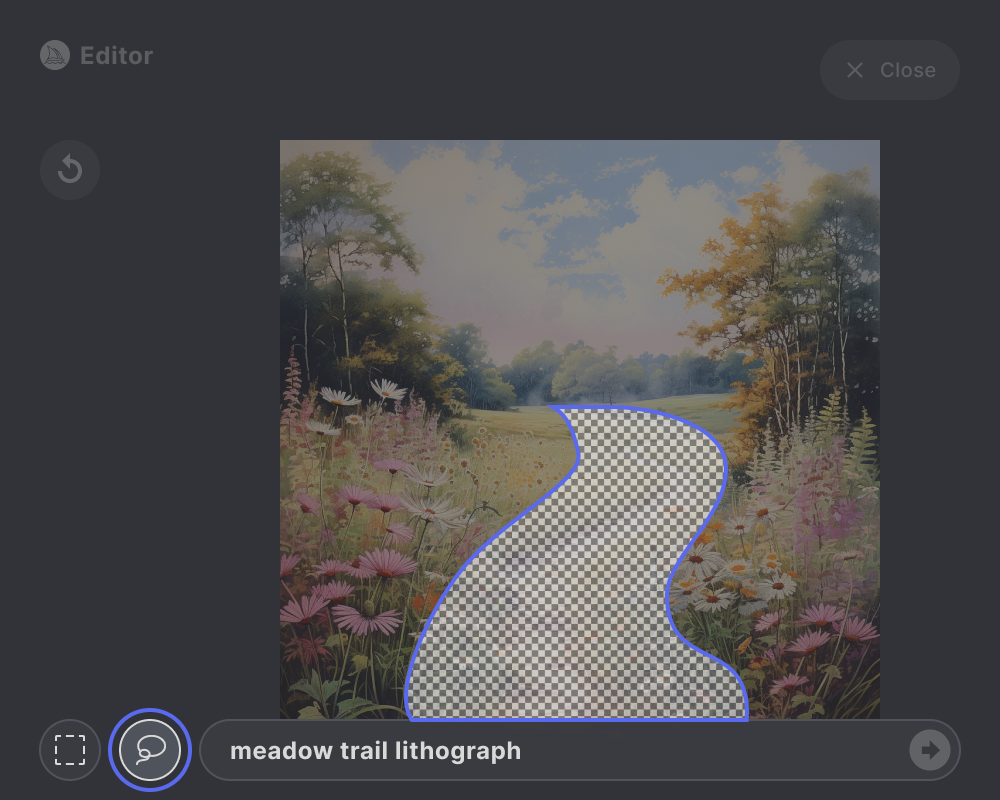
Describe what you want to generate in the selected areas with an updated prompt. Your revised prompt should focus on the details you want to introduce or change.

Click the Submit → button to send your request to Midjourney Bot. The Vary Region editor can now be closed, and you can return to Discord while your Job is processed.
Note You can use the Editor Button underneath an upscaled image multiple times to experiment with different selections and prompts.

The Midjourney Bot will process your Job and generate a new image grid using the information from your original image and the guidance of your new prompt.
New Image Grid
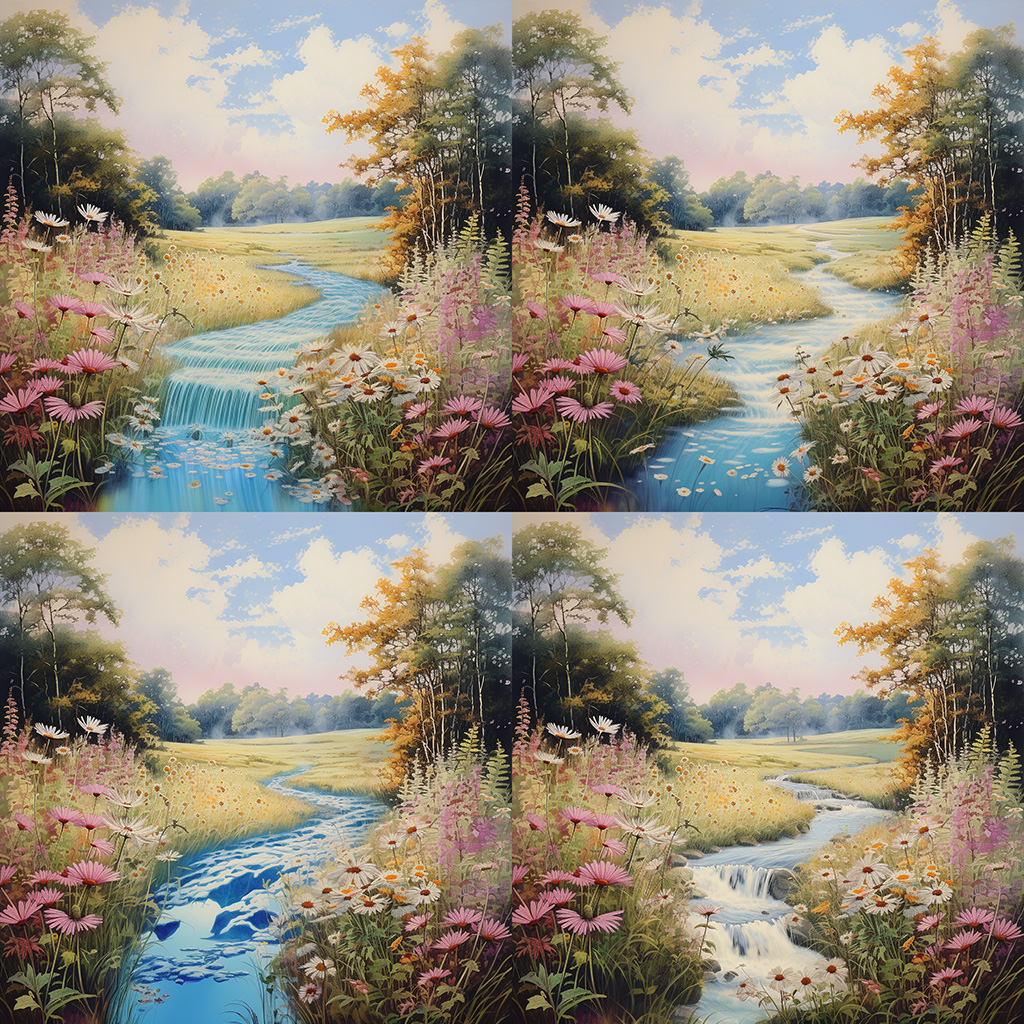
Original vs. Varied Comparison
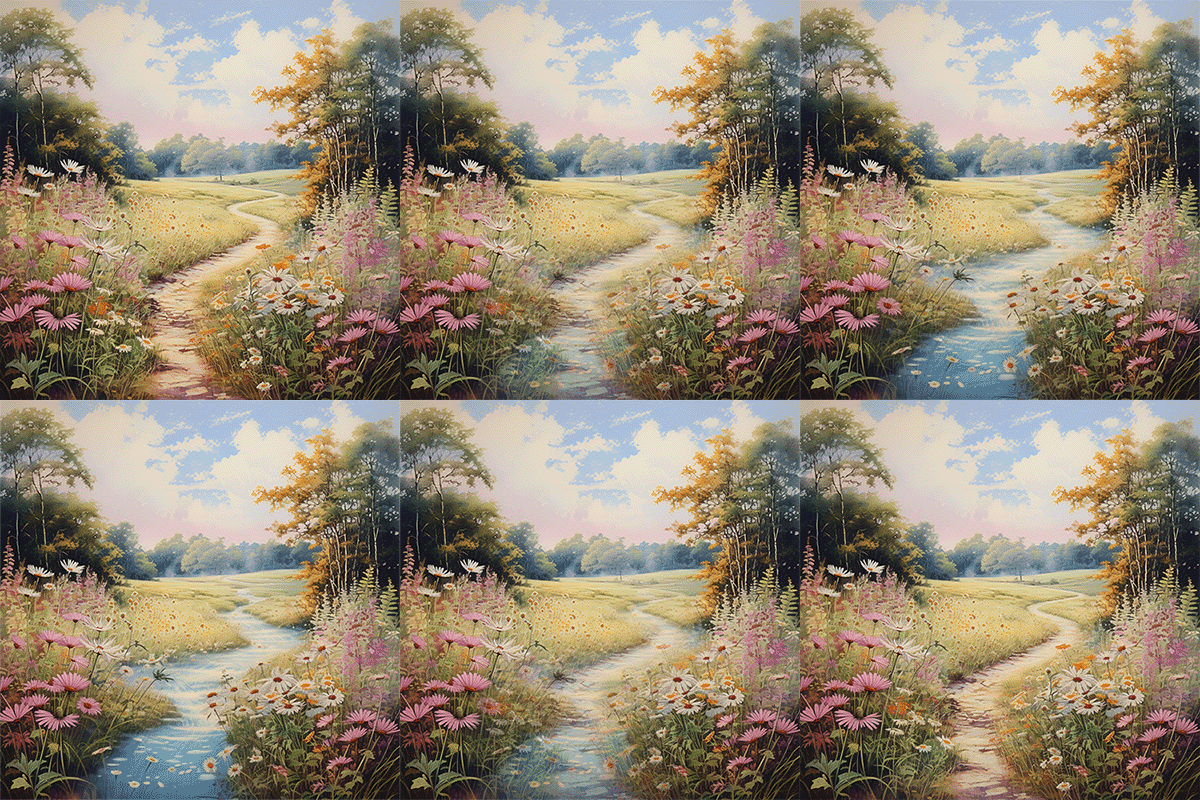
You can upscale one of your new images and use the Vary Region Editor again to continue refining your image.
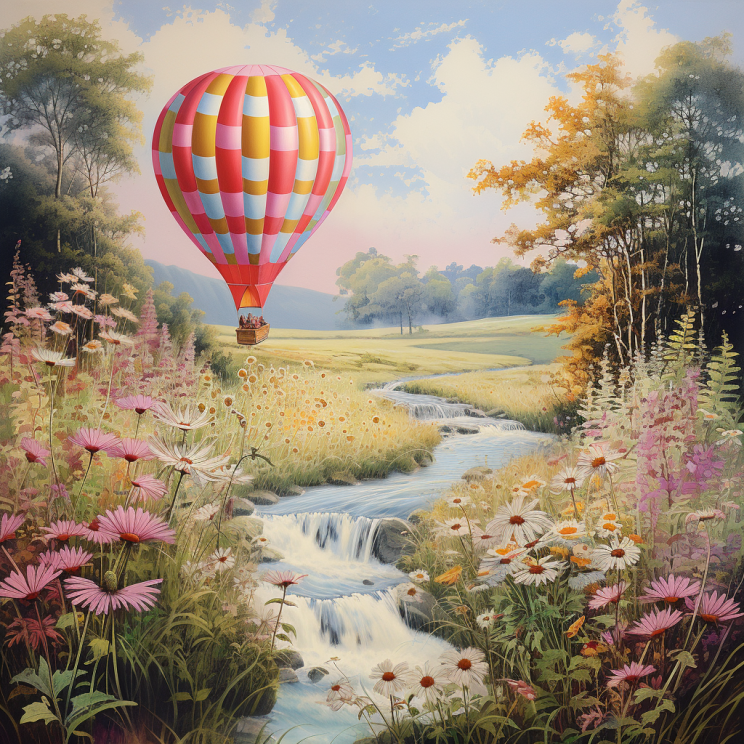
Updated Prompt: hot air balloon lithograph
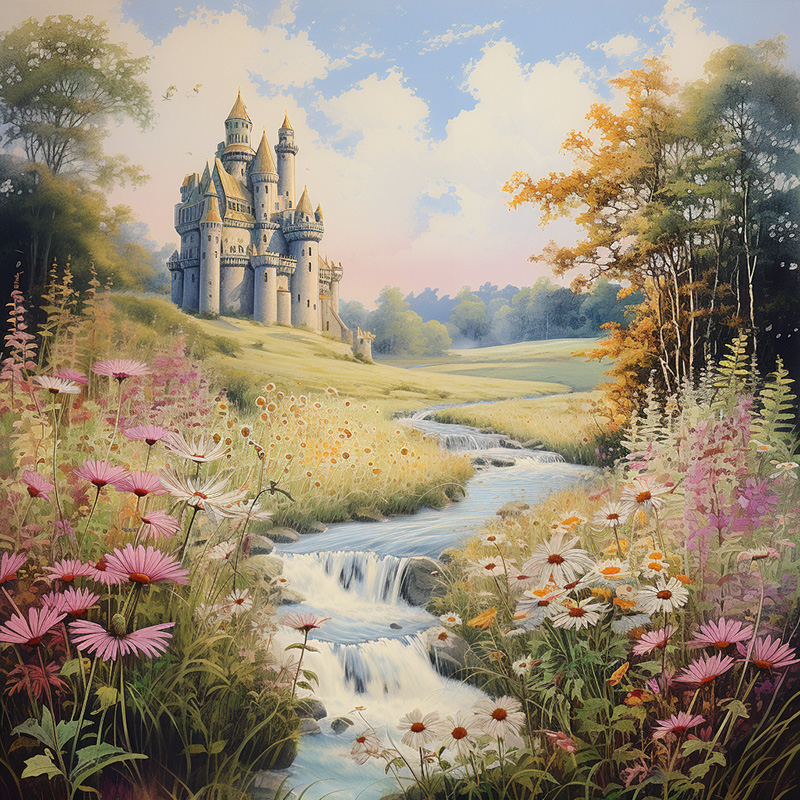
Updated Prompt: castle in the meadow lithograph
-
Selections The size of your selection affects the outcome. Larger selections provide the Midjourney Bot with more contextual information, which can improve the scaling and context of new additions. But selecting too much may lead to the newly generated elements blending or replacing parts of the original image you wished to preserve.
-
Prompts Experiment with how you modify your prompt when Using Vary Region + Remix Mode. Prompts should focus on what you want to happen in the selected area. The Midjourney Bot also considers the existing image when generating a selected area, so shorter focused prompts often are more effective. Midjourney Prompts should not be conversational. Instead of “Please change the meadow trail into a beautiful stream,” be direct and prompt “meadow stream.”
-
Work in Small Steps If you want to change many parts of an image, work on one part at a time. This way, you can create a focused prompt for each part.
Original Image
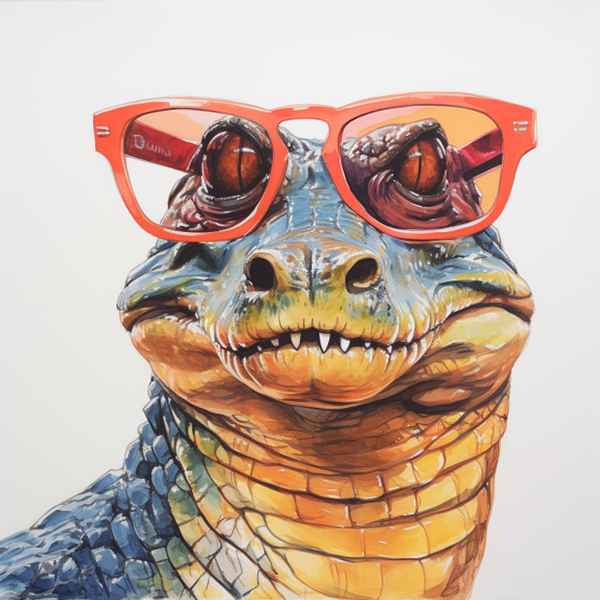
Prompt: gouache alligator in sunglasses
Selection
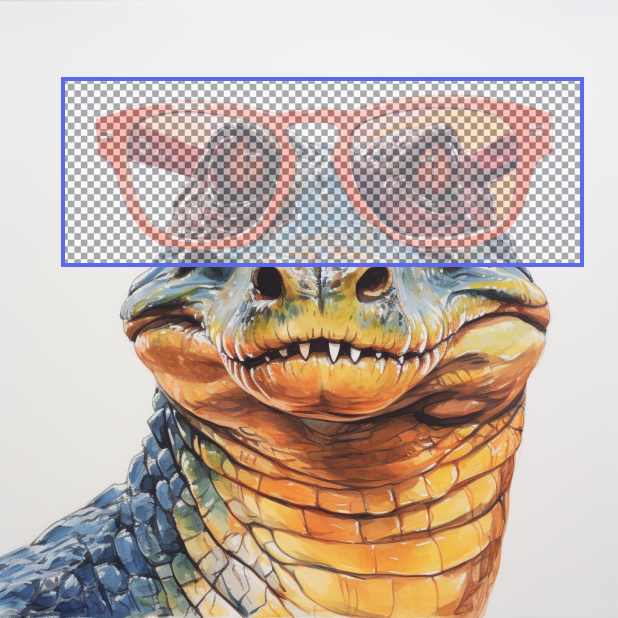
Updated Prompt: gouache alligator in green sunglasses
Result
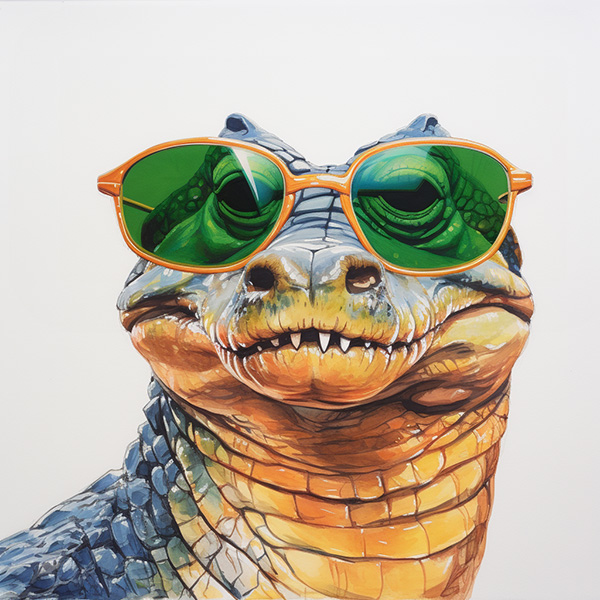
Updated Prompt: gouache alligator in green sunglasses
Original Image
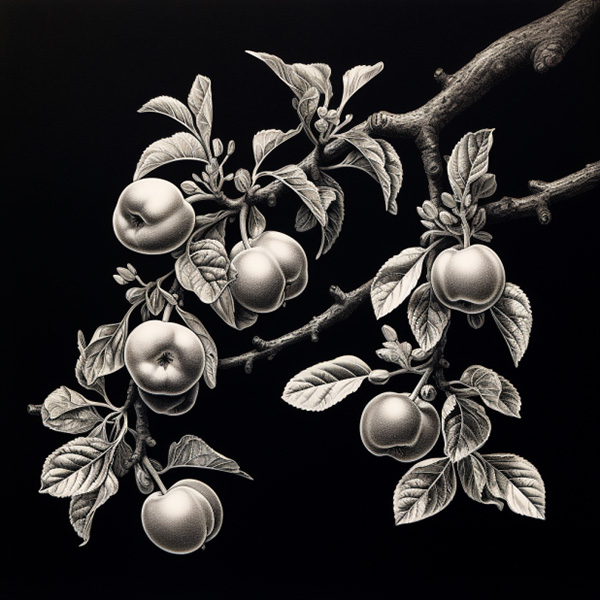
Prompt: scratchboard apple tree branch
Selection
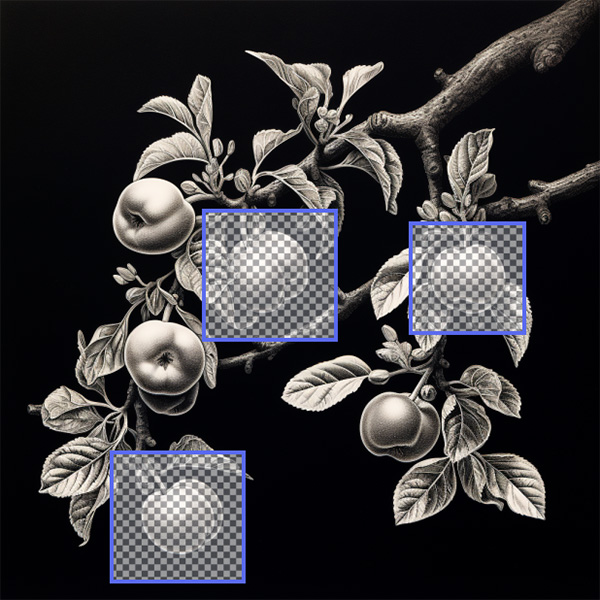
Updated Prompt: rainbow scratchboard apple tree branch
Result
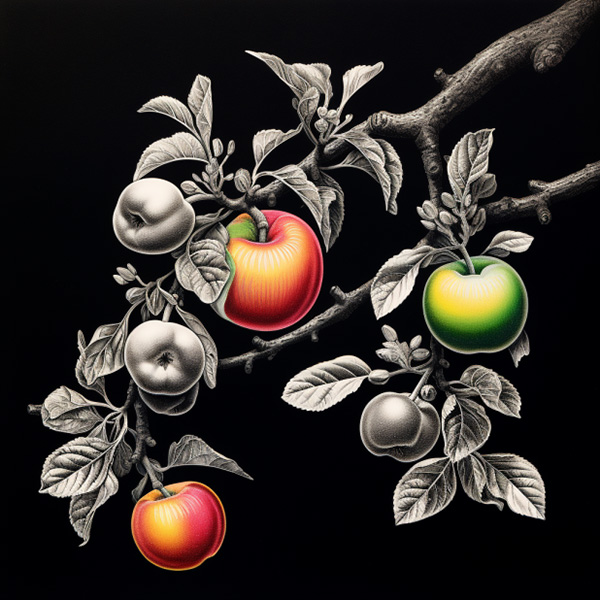
Updated Prompt: rainbow scratchboard apple tree branch
Jobs generated using Vary (Region) + Remix Mode will honor the following parameters: –chaos –fast –iw –no –stylize –relax –style –version –video –weird