
Discord Interface
You can interact with the Midjourney Bot on Discord. The Midjourney server has channels for working collaboratively, technical and billing support, official announcements, offering feedback, and discussions. The community is supportive, encouraging, and eager to share their knowledge with users just starting out.
Midjourney Discord: https://discord.gg/midjourney
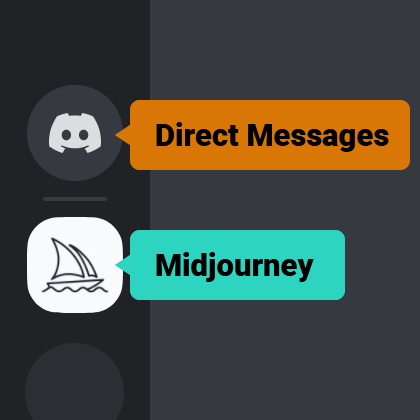
Direct Messages Work one-on-one with the Midjourney Bot in your Direct Messages for a quieter experience.
Midjourney Official Server The official Midjourney server with channels for collaboration and billing/technical support.
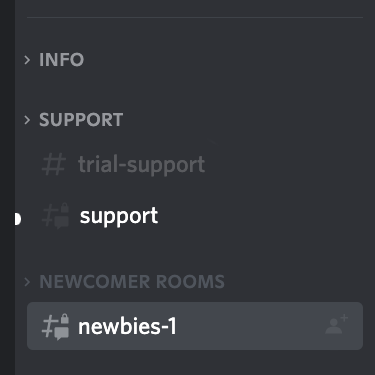
#member-support Visit this channel for billing and technical support from Midjourney Guides.
#newbies Visit any #newbies channel to create images.
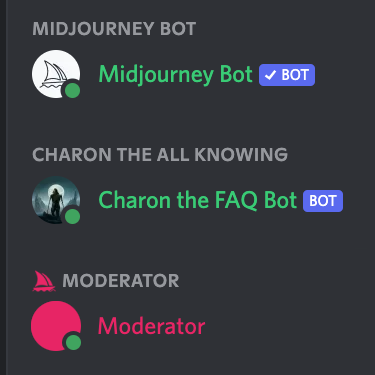
Midjourney Bot
The bot that produces images with the /imagine command
Moderators and Guides Moderators and Guides can help with billing and technical problems in the support channels.
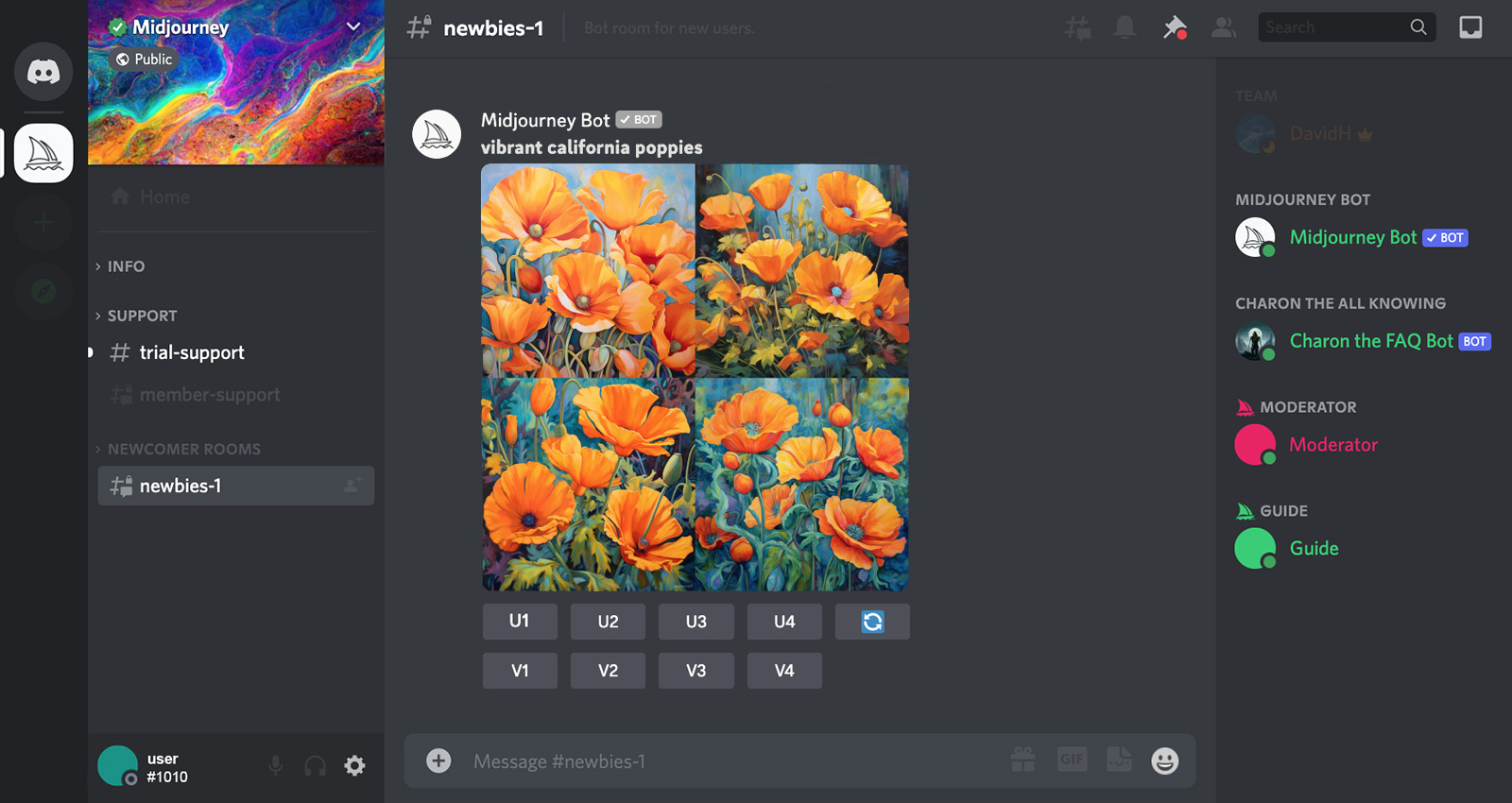
The /imagine command produces a grid of low-resolution image options based on your prompt. Use the buttons under each image grid to create variations of an image, upscale an image, or rerun the last Midjourney Bot action.
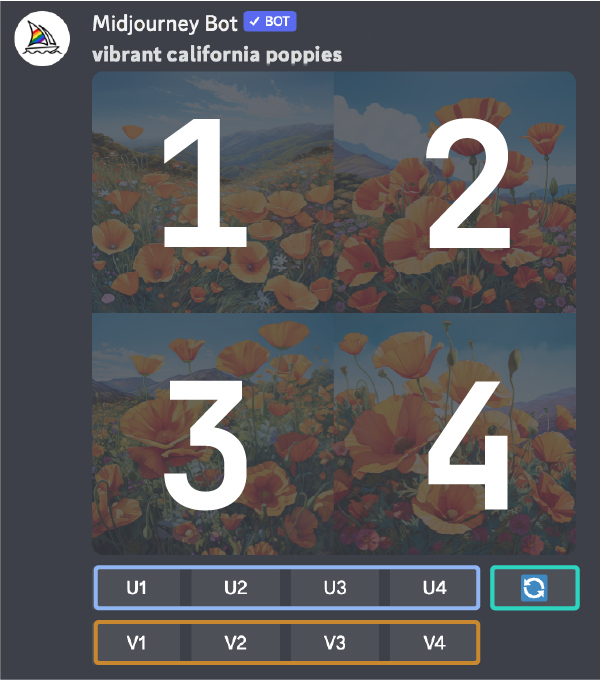
U1 U2 U3 U4 U buttons upscale an image generating a larger version of the selected image and adding more details.
🔄 The redo (re-roll) button reruns a job. In this case, it would rerun the original prompt producing a new grid of images.
V1 V2 V3 V4 V buttons create incremental variations of the selected grid image. Creating a variation generates a new image grid similar to the chosen image’s overall style and composition.
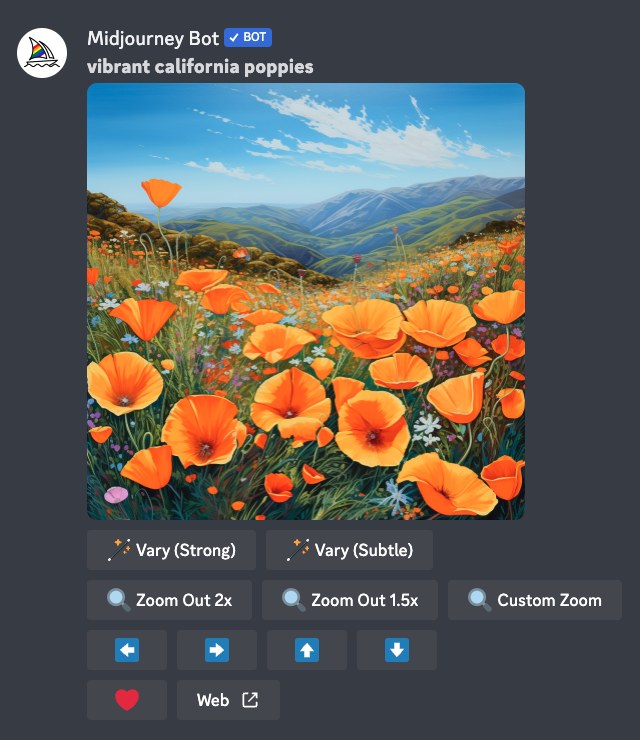
🪄 Make Variations` `Web ↗️` `❤️ Favorite
Make Variations: creates a variation of the upscaled image and generates a new grid of four options.
Web: Open the image in your gallery on Midjourney.com
Favorite: tag your best images to easily find them on the Midjourney website.
If the #general or #newbie channels are moving too fast, Midjouney subscribers can work one-on-one with the Midjourney Bot in their Discord Direct Messages. Learn how to direct message the Midjourney Bot
React with different emojis to Midjourney Jobs to send images to your Direct Messages, cancel a job in progress, or delete an image. Learn how to use emoji reactions.
Participate in a fun themed group image generation in the #daily-theme channel. Look for the day’s theme next to the channel’s name. All generations must include one of the day’s keywords.
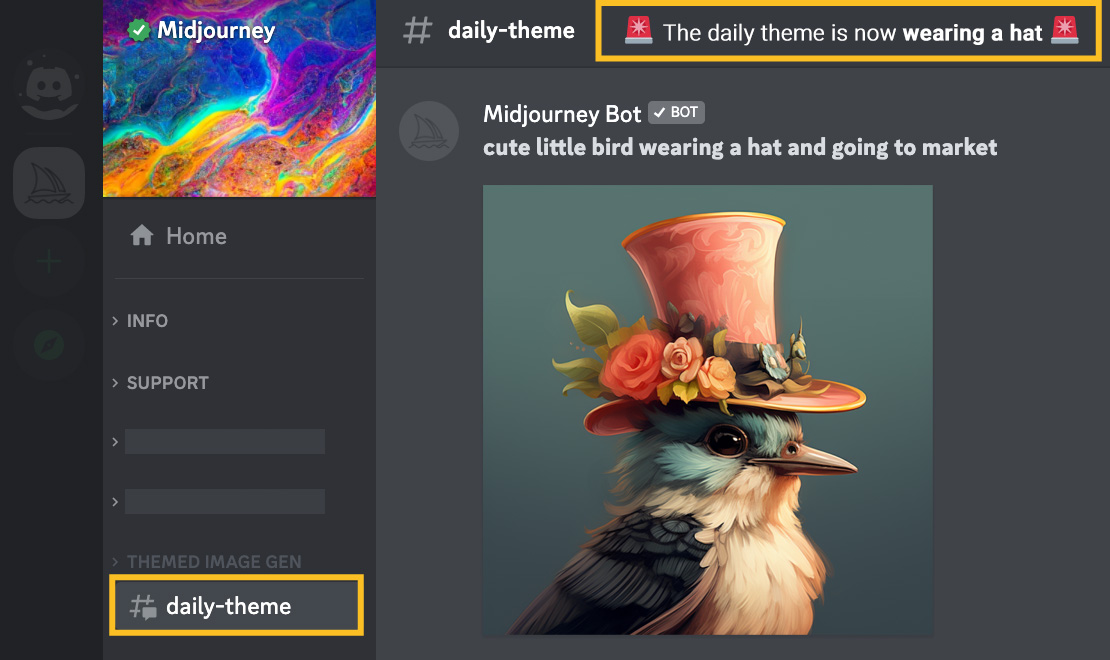
Turn off the daily theme notification
Want to avoid the daily notification from the daily theme channel? Use the /daily_theme command to turn off notifications for that channel.